
In today’s digital age, notifications from our smartphones, tablets, and computers can be both helpful reminders and constant interruptions. While they keep us updated, an overflow of notifications often leads to stress, distraction, and decreased productivity. Setting clear boundaries with notifications is essential to regain control over your time and attention.
This post offers practical tips to help you manage and customize your notification settings for a healthier digital lifestyle.
Why Setting Boundaries with Notifications Matters
Notifications are designed to grab your attention, but when they arrive nonstop, they can fragment your focus or even disrupt your downtime. Constant alerts may cause anxiety or make it difficult to fully engage in the task at hand.
By setting boundaries, you can:
– Reduce distractions and improve concentration
– Lower stress caused by notification overload
– Create designated times for checking messages
– Protect personal or family time from interruptions
– Improve overall digital wellbeing
Assess Your Current Notification Habits
Before making changes, take a moment to understand how notifications affect your day:
– How often do you receive notifications daily?
– Which notifications are necessary, and which could be paused?
– Do you check your device every time you get an alert?
– Are notifications interrupting important work or relaxation?
This self-assessment will guide you in tailoring your settings to your lifestyle.
Tips for Setting Boundaries with Notifications
1. Customize Notification Settings per App
Most smartphones and computers allow you to control notifications on an app-by-app basis.
– Prioritize important apps: Enable notifications only for things like calendars, emails, or messaging apps you use for urgent communication.
– Disable non-essential notifications: Turn off alerts from games, social media, or shopping apps that don’t require immediate attention.
– Use “silent” notifications: Some platforms let you receive notifications silently, without sounds or vibrations.
2. Use “Do Not Disturb” or Focus Modes
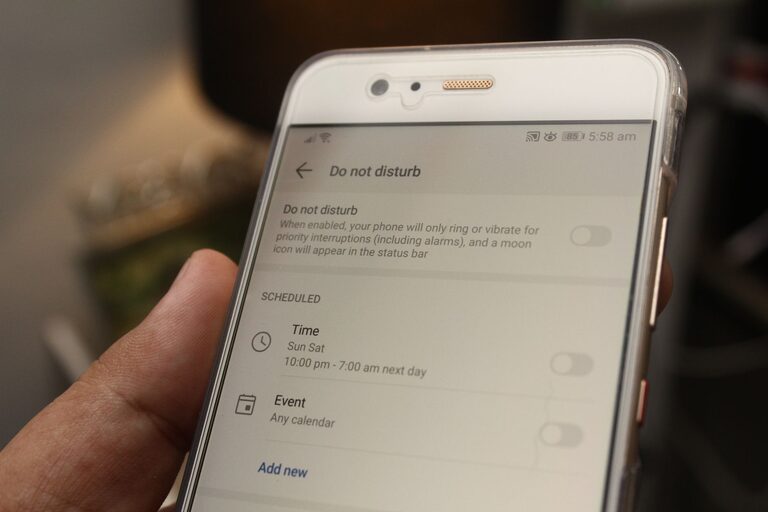
Built-in features like Do Not Disturb (DND) or Focus modes help pause notifications during specific times.
– Schedule DND during work hours, meetings, or sleep.
– Customize exceptions to allow calls or alerts from important contacts.
– Use Focus modes to create tailored environments (e.g., Work, Personal, Sleep).
3. Set Specific Times for Checking Notifications
Instead of reacting immediately to every alert, designate regular times to review messages and updates.
– Check notifications in batches during breaks.
– Avoid constantly switching tasks to respond instantly.
– This practice helps reduce distraction and improves workflow.
4. Turn Off Notifications for Group Chats and Promotional Messages
Group chats and promotional alerts can be particularly noisy.
– Mute group conversations that are not urgent.
– Opt out of marketing notifications from apps or websites.
– Review subscription settings periodically to stay in control.
5. Limit Notification Sounds and Vibrations
Sounds and vibrations can be more distracting than silent visual alerts.
– Use subtle notification tones or none at all.
– Disable vibration for less important notifications.
– Consider using LED or screen pop-ups without sound.
6. Manage Email Notifications Smartly
Email can be a significant source of alerts.
– Set your email app to notify you only for important senders or flagged messages.
– Turn off push notifications and check email at set intervals.
– Use filtering to reduce clutter.
7. Communicate Your Boundaries with Others
Inform colleagues, friends, and family about your notification preferences.
– Let them know the best times to reach you.
– Use status messages or auto-replies during Do Not Disturb periods.
– Setting expectations reduces pressure to respond immediately.
8. Regularly Review and Adjust Settings
Notification needs change over time, so revisit your settings every few months.
– Remove apps no longer in use.
– Refine priority lists as your workflow evolves.
– Stay aware of new features on your devices that help manage notifications.
Additional Tips for Reducing Notification Overload
– Use widgets or app summaries: Some devices show notification summaries to reduce constant pop-ups.
– Practice mindfulness: When you get a notification, pause and decide if it requires immediate attention.
– Consider minimalism: Limit the number of apps installed to reduce potential notifications.
Conclusion
Managing notifications is an important step toward reclaiming your focus and maintaining digital balance. By customizing settings, scheduling specific times for checking alerts, and communicating your boundaries, you can enjoy the benefits of technology without feeling overwhelmed.
Try implementing these tips gradually and observe how your productivity and peace of mind improve. Setting boundaries with notifications isn’t about completely disconnecting; it’s about making technology work better for you.
About the Author